How-to guide
SEO basics for your store
Titles, descriptions and language signals that help customers find you on search.
Search engines like Google show a title and a short description for every website they list. In your Ordrio admin panel you choose the title and description for your store's homepage and the image people see when your link is shared, so customers searching for you know straight away what you sell.
Before you start
- Write down a short title: your store name and what you sell, for example "Your Store | Fresh groceries delivered in Pune".
- Write one or two lines about your store for the description.
- If you want a sharing image, make a PNG or JPG that is exactly 1200 × 628 pixels.
The values in the screenshots are examples. Use your own store name, description and links.
Set your page title and description
- Open nadi.ordrio.com (your Ordrio admin panel) and log in.
- Click the Settings icon (the gear) at the top right.
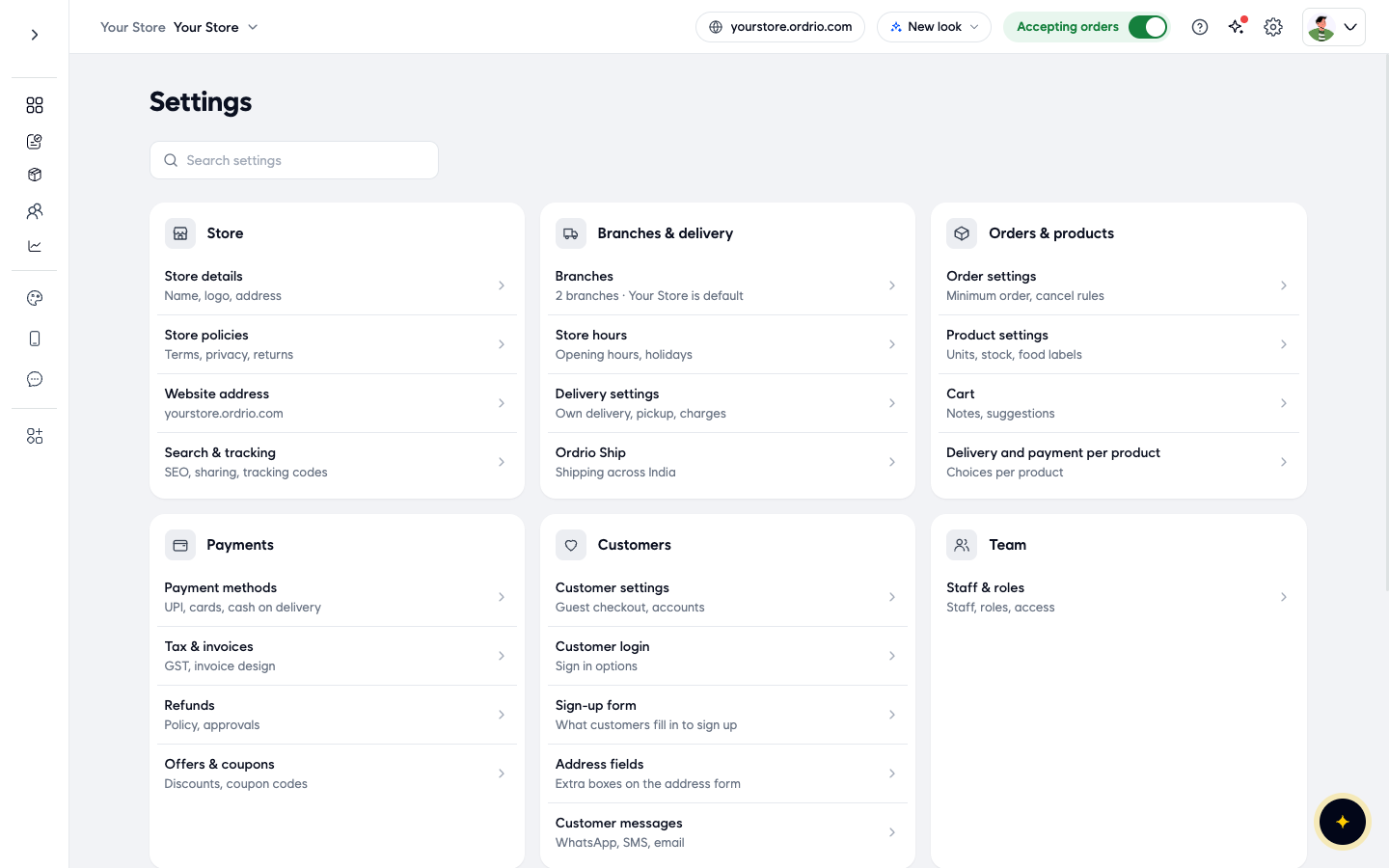
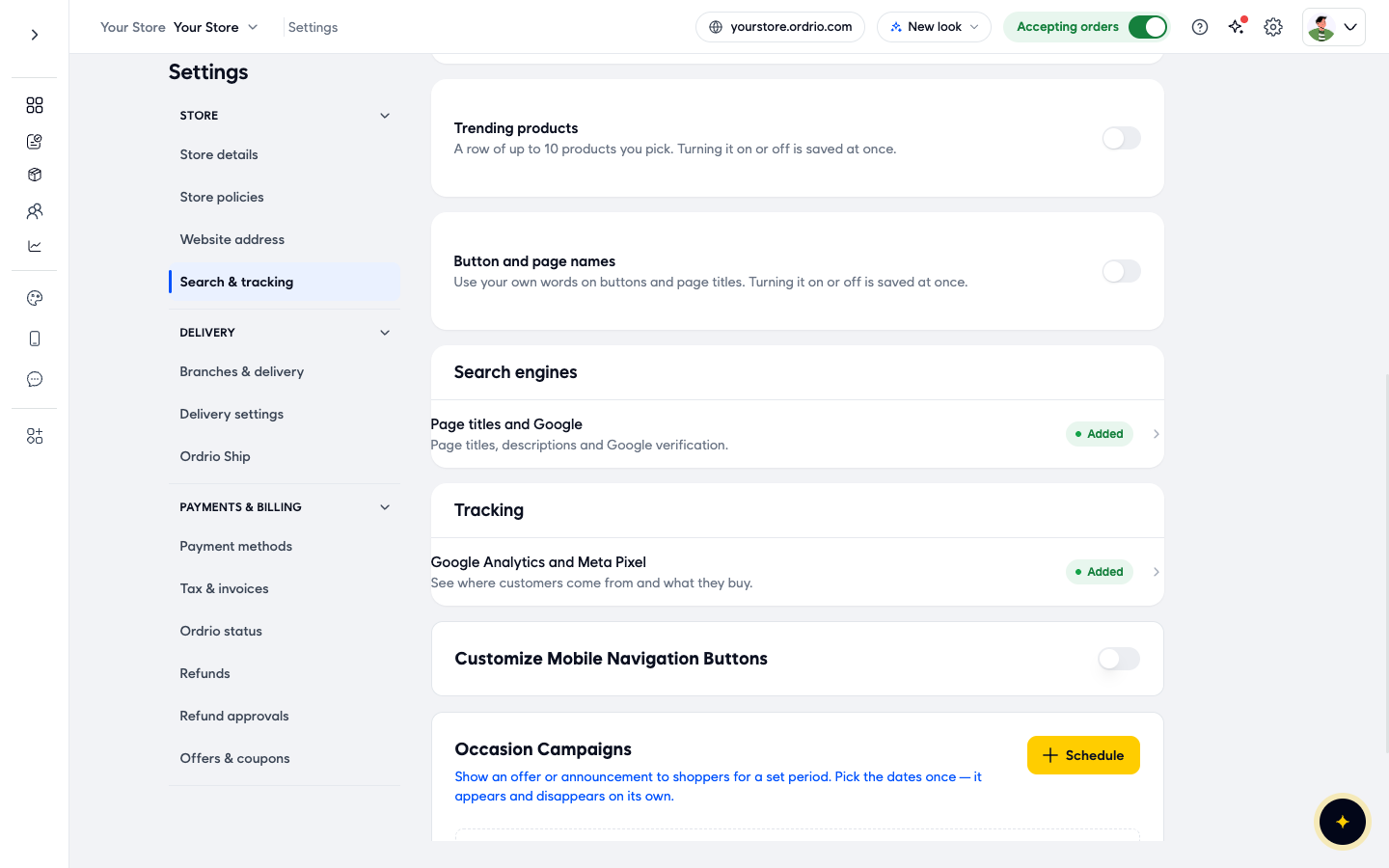
- Under Store, click Search & tracking.
- Scroll to Search engines and click Page titles and Google. Before you have set it up, it shows Not added.
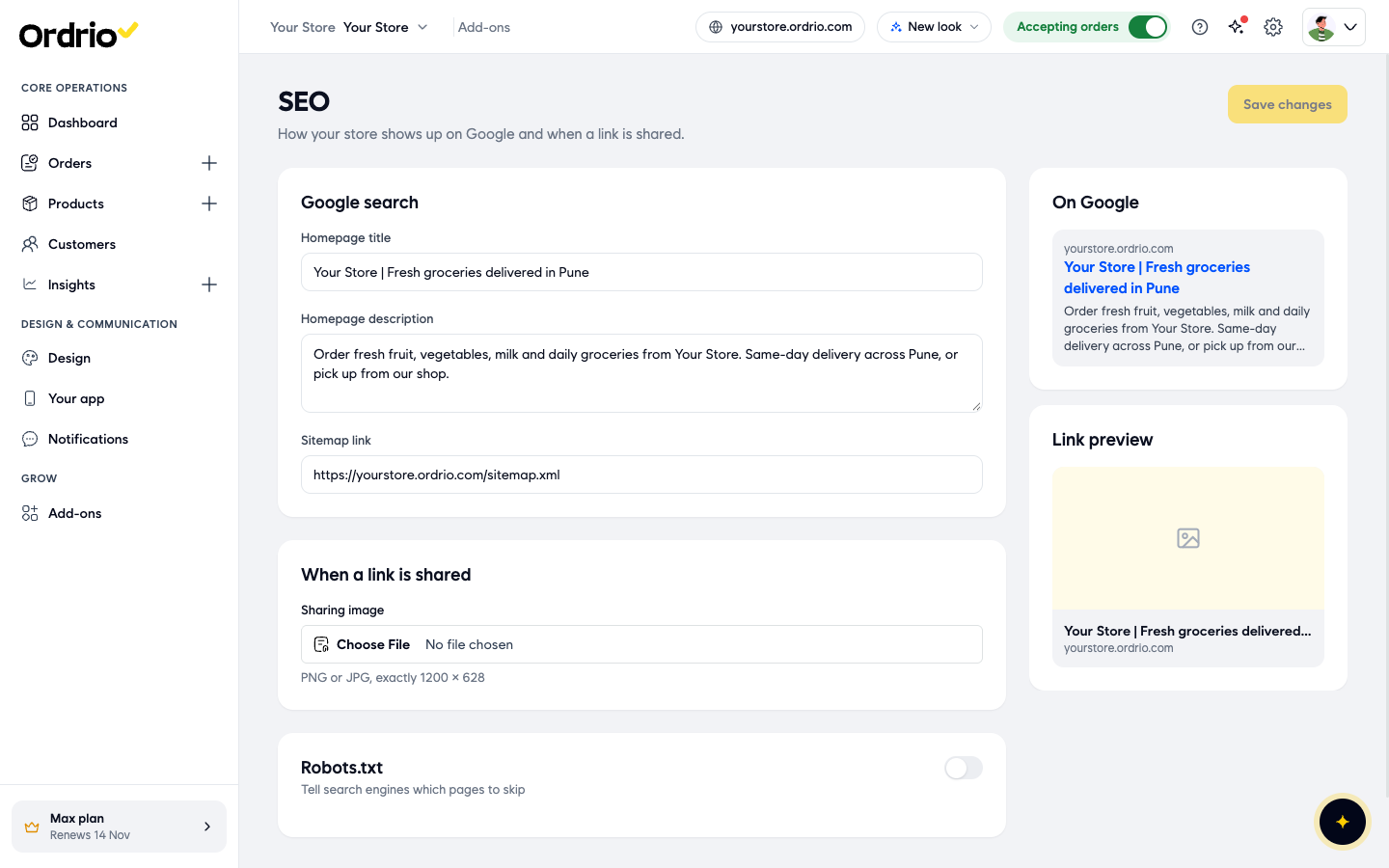
- The SEO page opens. Until you save it for the first time, a SEO is not set up message is shown at the top.
- In Google search, type your Homepage title. This is the blue headline Google shows for your store. Put your store name and what you sell.
- Type your Homepage description. This is the one or two lines Google shows under the title. Say what you sell and where you deliver.
- In Sitemap link, paste the full link to your store's sitemap, starting with
https://. A sitemap is a list of your store's pages that helps Google find them. - Check the previews on the right. On Google shows how your store looks in Google search, and Link preview shows how your link looks when someone shares it.
Add a sharing image
- In When a link is shared, click Choose File next to Sharing image and pick your image. It must be a PNG or JPG, exactly 1200 × 628. This image shows in the Link preview when someone shares your store link.
Choose pages search engines should skip (optional)
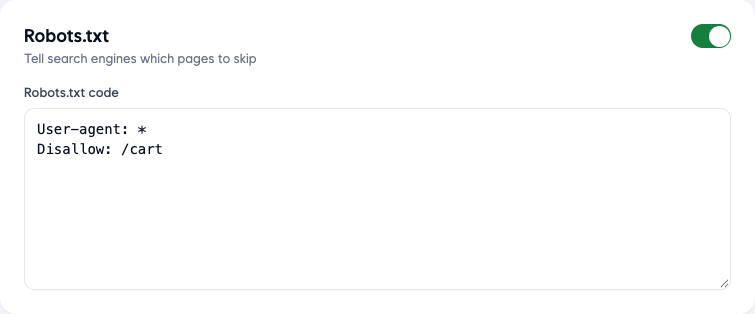
- Most stores can leave Robots.txt off. If you want to tell search engines which pages to skip, turn on Use my own robots.txt and type your rules in Robots.txt code. For example,
User-agent: *andDisallow: /cartasks all search engines to skip your cart page.
Save
- Click Save changes at the top right.
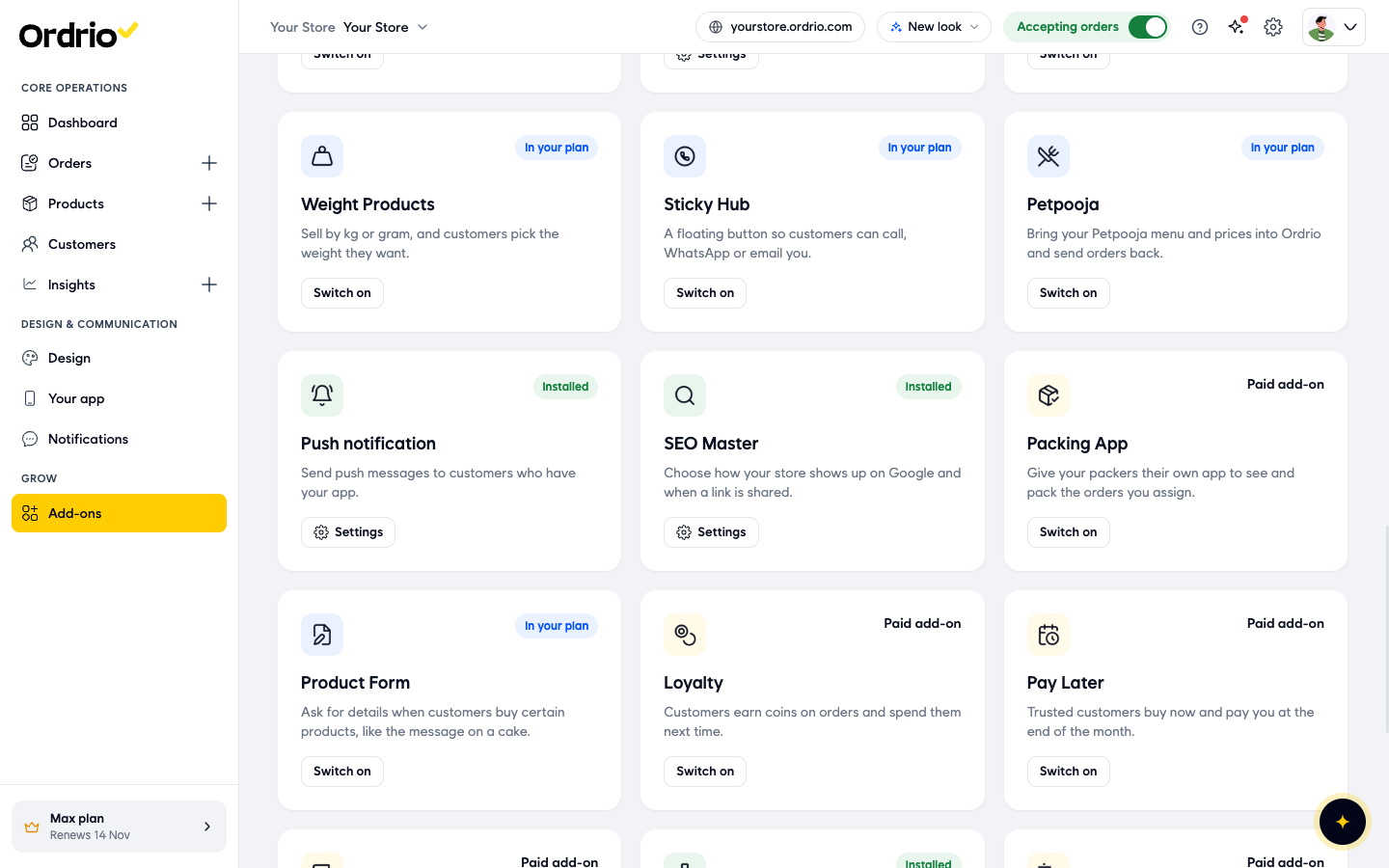
- You are taken to Add-ons. SEO Master now shows Installed. To change your title, description or image later, click Settings on the SEO Master card. In Settings > Search & tracking, Page titles and Google now shows Added.
Good to know
- These settings are for your store's homepage: the title and description customers see in Google search, and the title and image they see when your link is shared.
- Keep the title short and clear. Long titles and descriptions are cut off with "..." in the previews, so put the most important words first.
- The sharing image must be exactly 1200 × 628. Pick a clear image of your store, logo or best products.
- If you turn on Use my own robots.txt, be careful. A wrong rule can stop search engines from listing pages you want customers to find. If you are not sure, leave it off.
- Nothing is saved until you click Save changes. If you leave the page with the Unsaved changes bar showing, click Save changes first, or Reset to undo your changes.
Related
- Analytics and tracking pixels
- Customising store branding
Was this article helpful?