How-to guide
Subscription schedules and catalogues
Create delivery slots and subscription plans in your Ordrio admin panel, and see what customers get when they subscribe.
Subscriptions let your customers sign up for regular deliveries, like a lunch tiffin every weekday or milk every morning. You set them up in two parts. First you create delivery slots (your schedules), which say when subscription orders are made and delivered. Then you create plans (your catalogues), which say what customers can subscribe to and how often.
Before you start
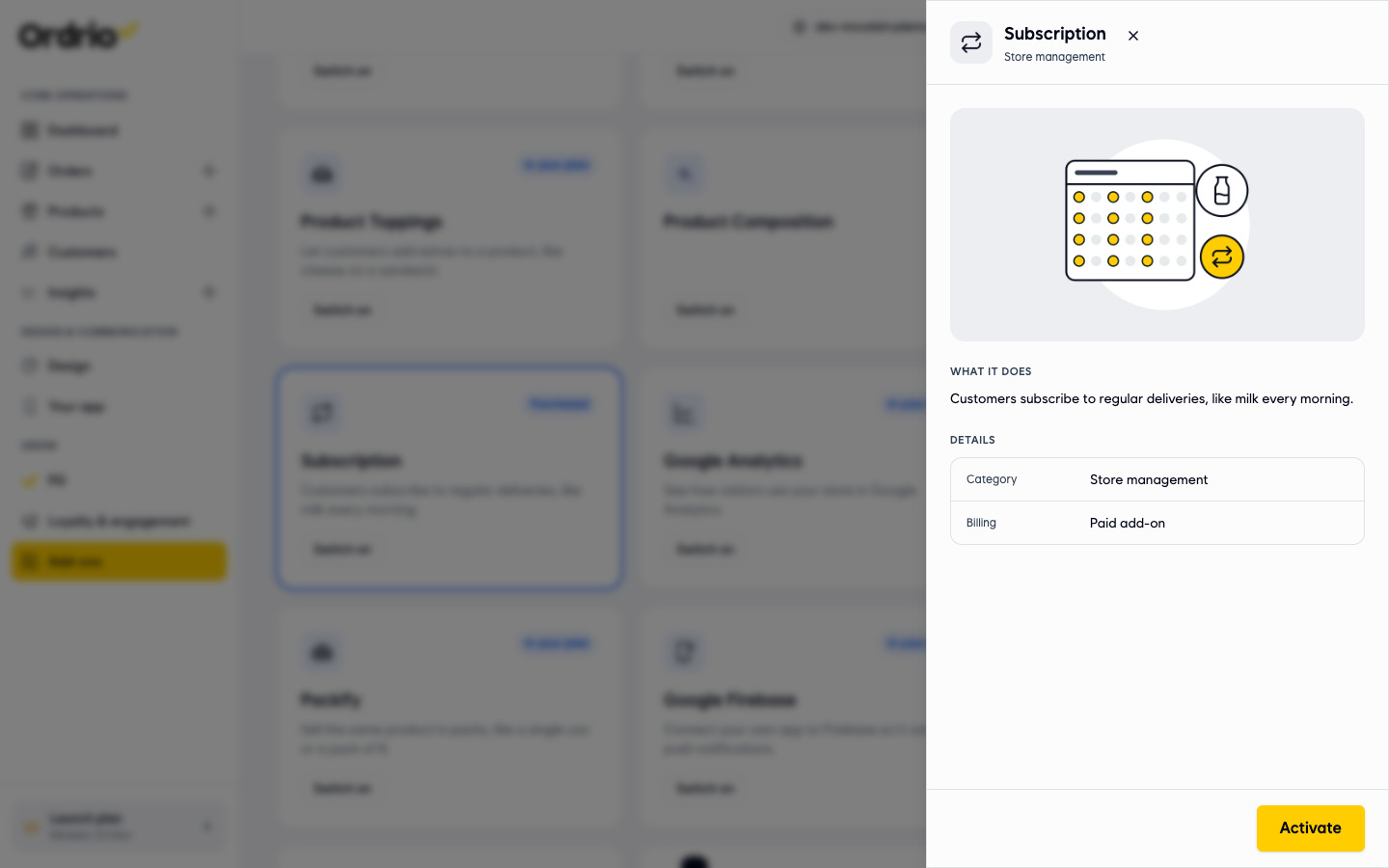
- The Subscription add-on must be switched on. Open manage.ordrio.com (your Ordrio admin panel), log in, and in the menu on the left, under Grow, click Add-ons. Type "Subscription" in the search box and click Subscription on the card. The panel shows What it does and Details (Category: Store management, Billing: Paid add-on). Click Activate.
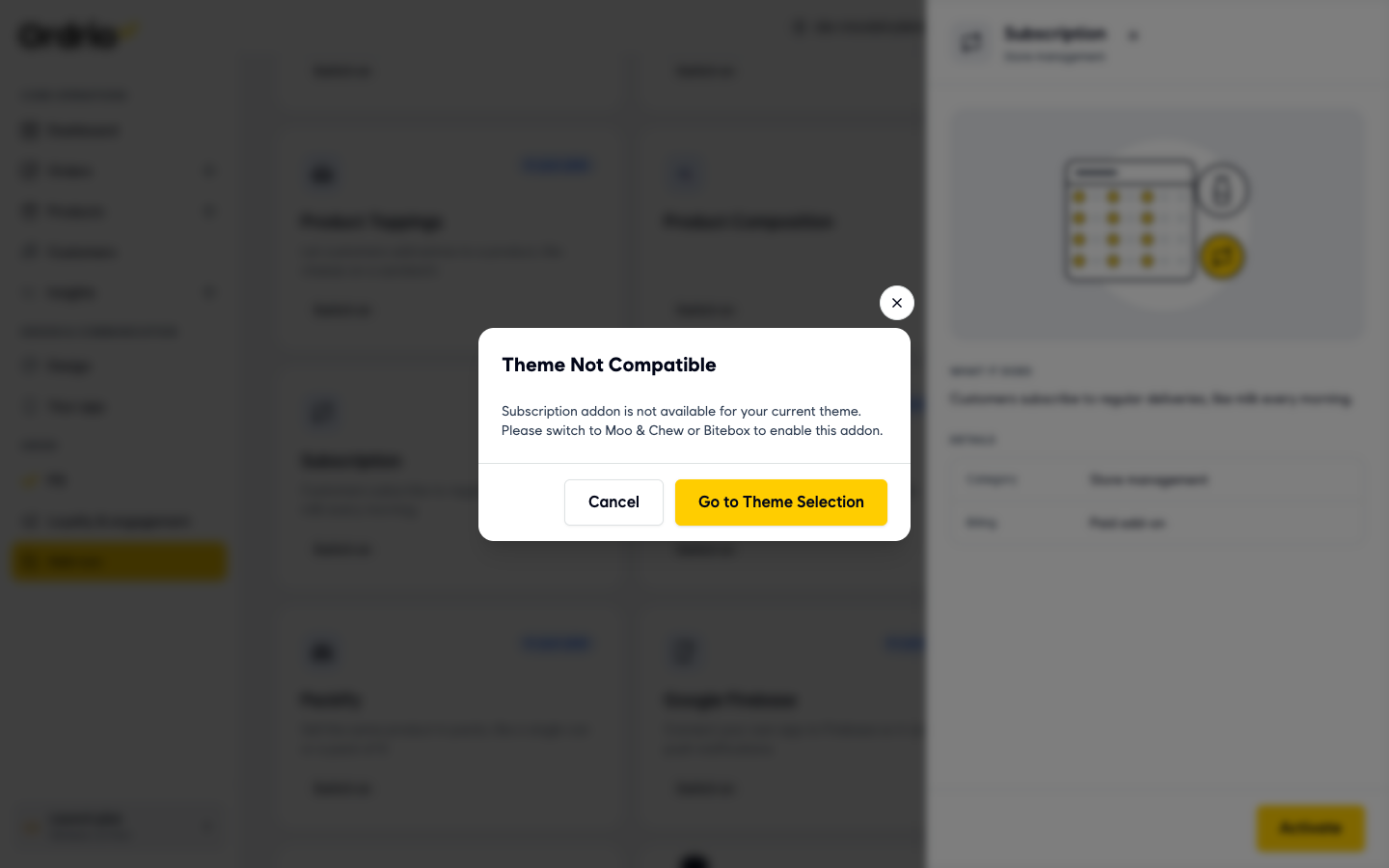
- Your store must use a theme that supports subscriptions. If it does not, Ordrio shows Theme Not Compatible and names the themes that work (Moo & Chew or Bitebox). Click Go to Theme Selection to choose a theme, or Cancel to keep your current one. After you switch theme, go back to Add-ons, open Subscription and click Activate again.
- Add the products you want to sell by subscription in Products first. A plan can only use products that already exist.
When the add-on is on, a Subscription menu appears on the left, under Grow, with Overview, Schedules, Catalogues, Time-bound, Customers, Deliveries, Order Logs and Settings.
Create a delivery slot
- Open manage.ordrio.com (your Ordrio admin panel) and log in.
- In the menu on the left, under Grow, click Subscription, then click Schedules. The Delivery slots page opens. It lists your slots with three columns:
- Slot: the slot name and the time it is delivered, for example "Delivered at 12:30 PM".
- Orders are made: when Ordrio creates the orders for that delivery.
- Changes close: the last time customers can change or pay for that delivery.
The box on the right, A day in the ... slot, shows the same three times in order for the slot you select.
- Click Add slot at the top right. The Add a delivery slot window opens. Fill in:
- Slot name: a name customers and your team will recognise, for example "Dinner" or "Early morning".
- Delivery time: when the delivery reaches the customer. Times are in steps of 30 minutes.
- Orders are made, Time and Day: when Ordrio creates the day's orders from active subscriptions. For Day, choose The day before or Same day.
- Changes close, Time and Day: after this time, customers can no longer change or pay for this delivery. For Day, choose The day before or Same day.
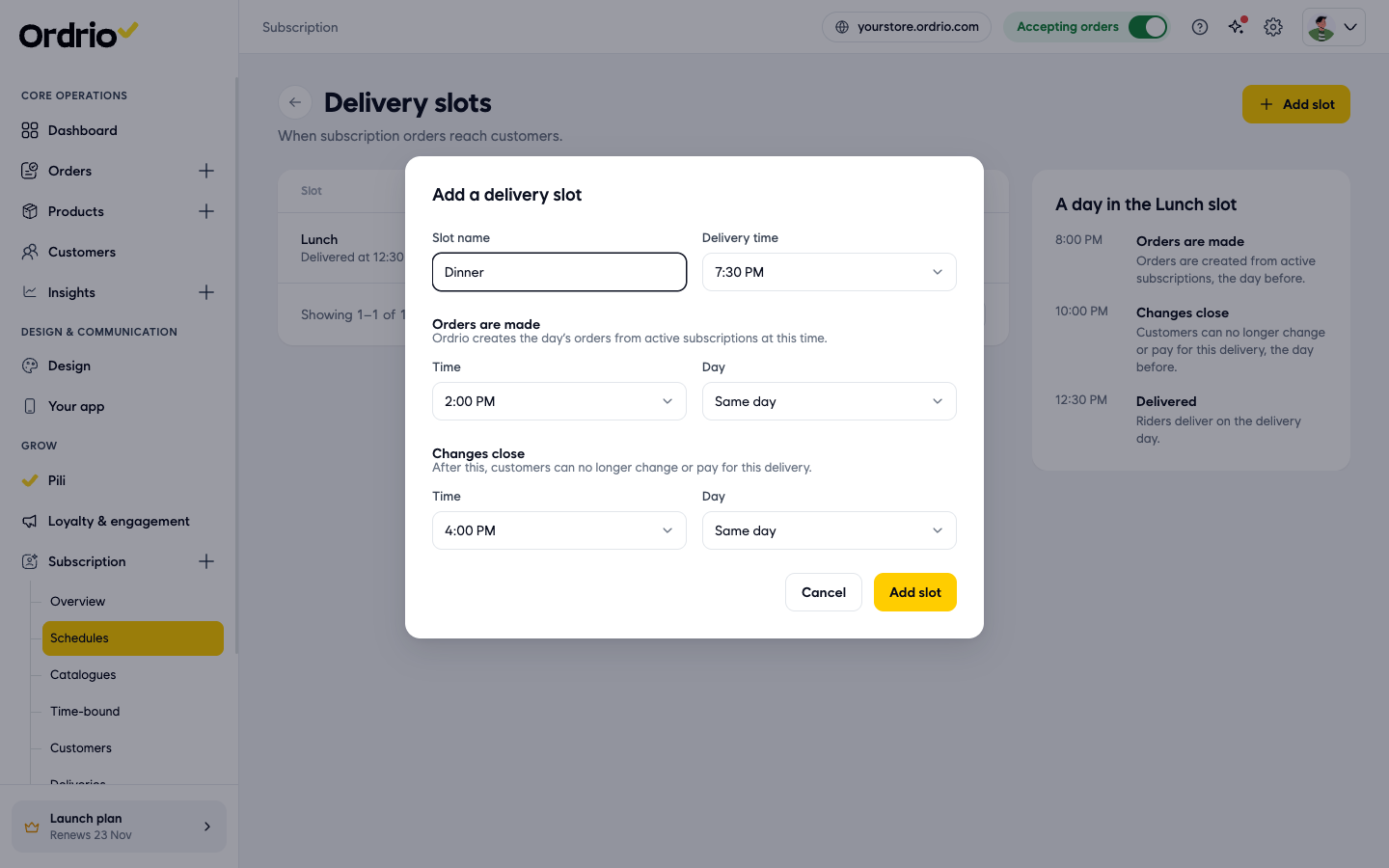
- Click Add slot. The window closes and your new slot appears in the list. The box on the right shows a day in that slot, for example: orders are made at 2:00 PM, changes close at 4:00 PM, and riders deliver at 7:30 PM.
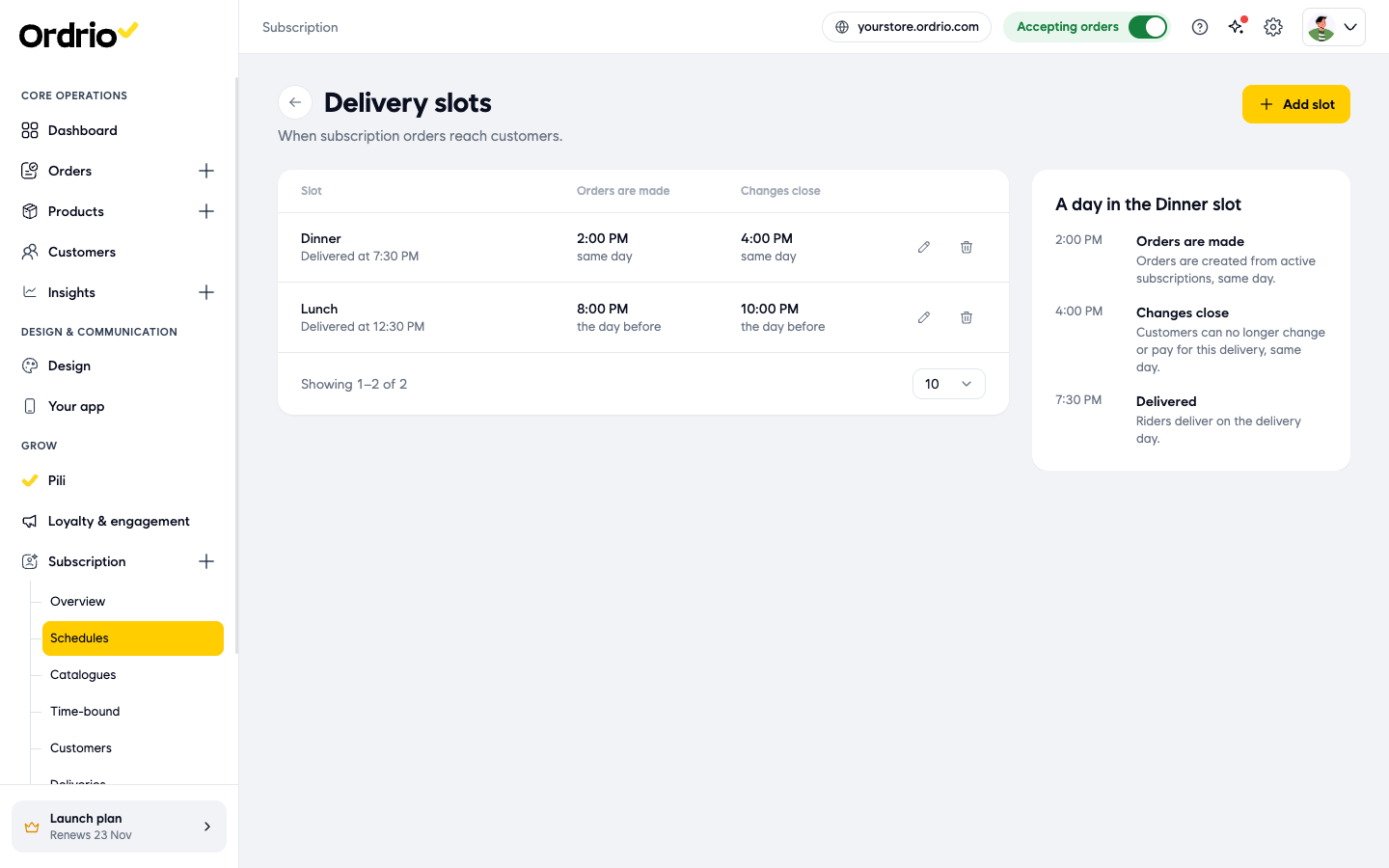
To change a slot, click the pencil icon on its row. To remove it, click the bin icon, then Delete slot. Ordrio asks "Delete the Dinner slot?" and warns that this cannot be undone. Click Keep slot if you change your mind.
Create a subscription plan
- Under Subscription, click Catalogues. The Plans page opens ("What customers can subscribe to, and how often."). Each plan shows:
- Plan: the plan name and its products.
- How they pay: for example Pay as you go.
- How often: for example Every day or Mon, Tue, Wed, Thu, Fri.
- Slots: how many delivery slots the plan uses.
- In store: a switch that shows or hides the plan in your store.
Use Search plans to find a plan by name.
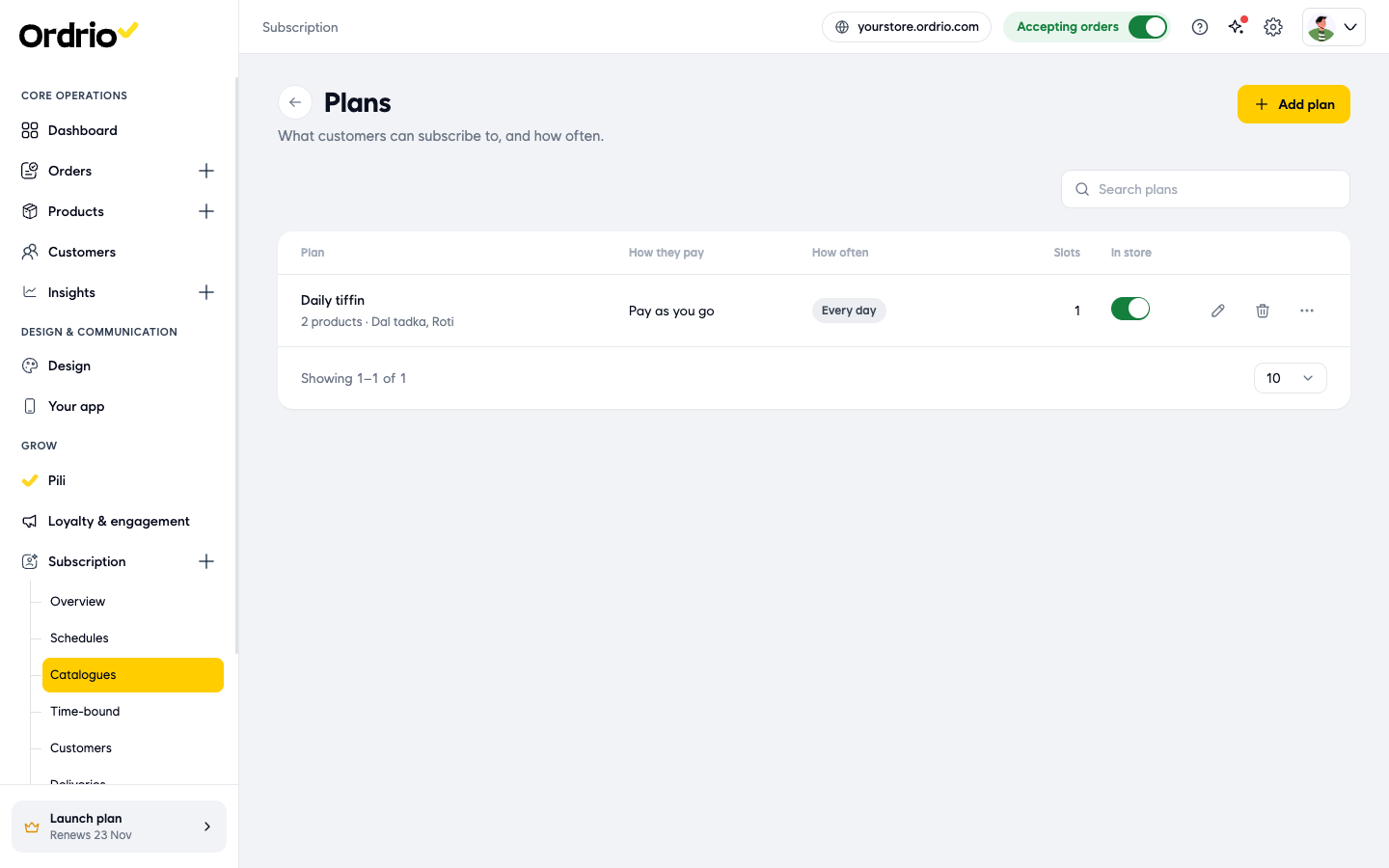
- Click Add plan at the top right. The New plan page opens.
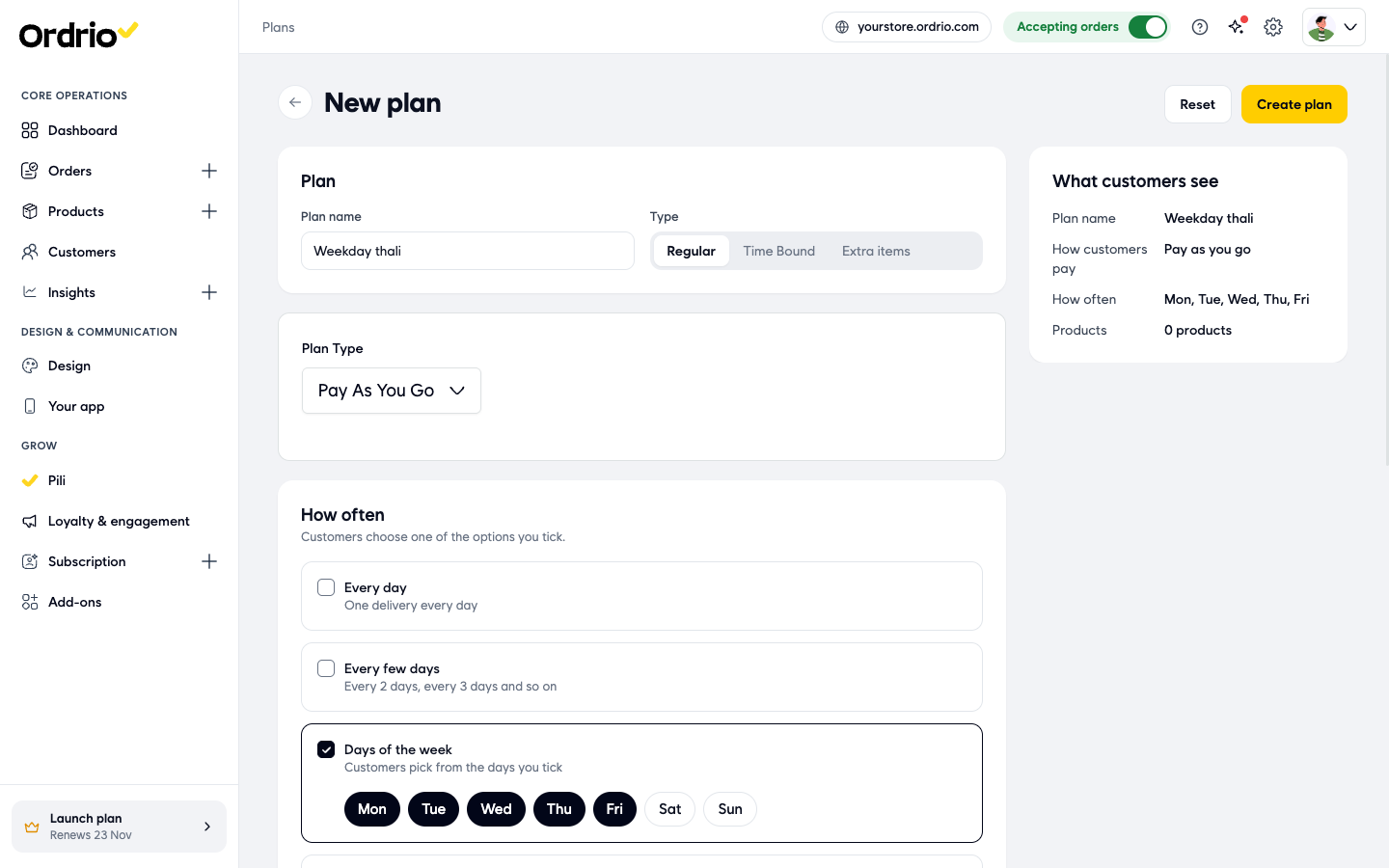
- Under Plan, type the Plan name, for example "Weekday thali". Under Type, keep Regular for repeating deliveries. You can also choose Time Bound or Extra items.
- Under Plan Type, click Select plan type and choose how customers pay:
- Upfront: the customer pays for the plan in full at the start.
- Pay As You Go: the customer does not pay for the whole plan at the start.
- Under How often, tick one or more options. Customers choose one of the options you tick.
- Every day: one delivery every day.
- Every few days: click the gaps you offer (Every 2 days, Every 3 days, Every 4 days, Every 5 days). You can also tick Customers can set their own gap, or click Add interval to add another gap.
- Days of the week: click the days customers can pick from, Mon to Sun.
- Fixed periods: tick set runs of days, Monday to Friday or Monday to Saturday, or click Add period to add your own.
As you fill the form, the What customers see box on the right shows the plan name, how customers pay, how often and the products.
- Under Delivery slots, click each slot customers can choose for this plan, for example Lunch. The slots you created in Schedules are listed here.
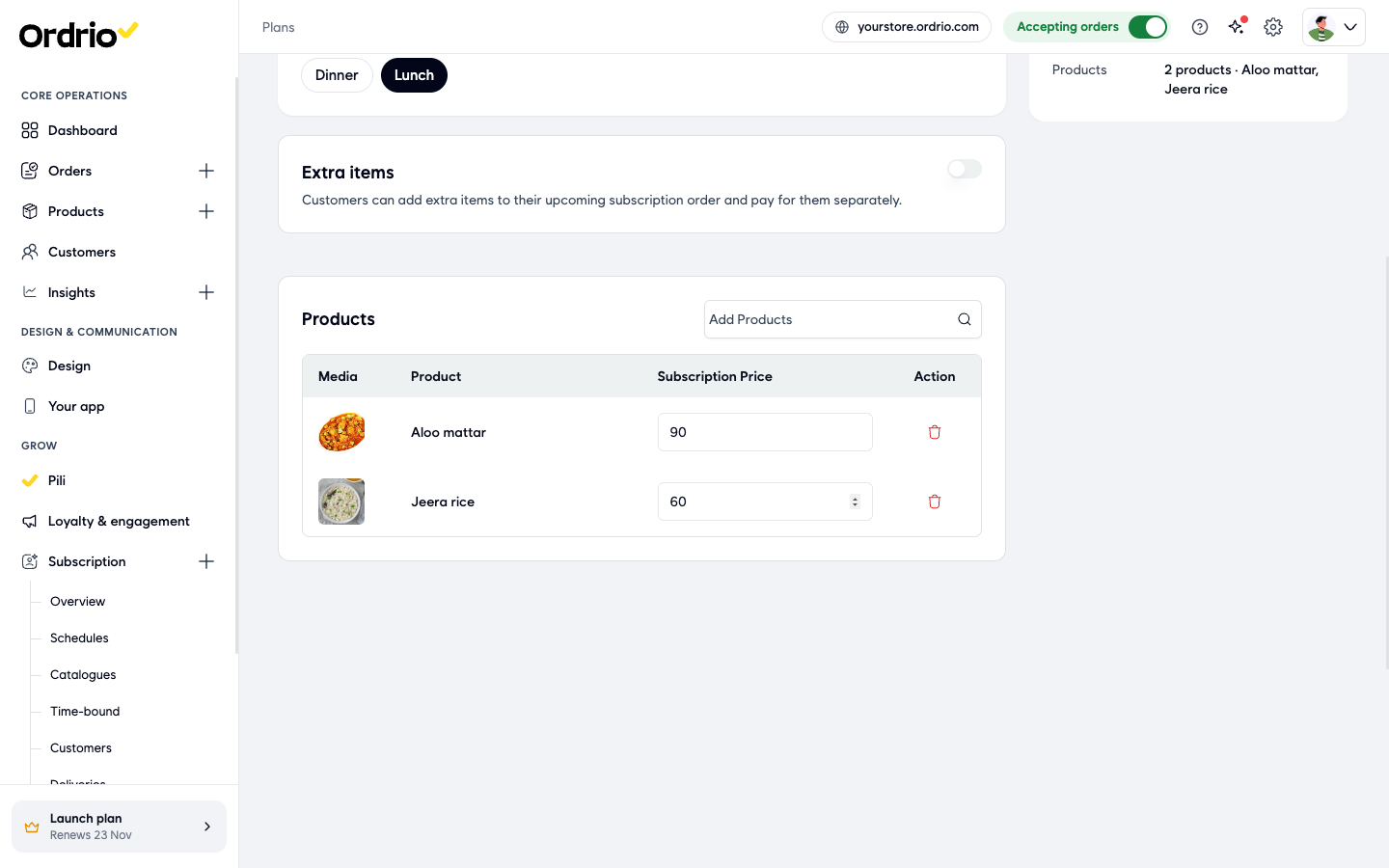
- Turn on Extra items if customers can add extra items to their upcoming subscription order and pay for them separately. Leave it off if not.
- Under Products, click Add Products, type a product name in Search products... and click the product. It is added to the table. In Subscription Price, type the price for this plan. Repeat for each product. To remove a product, click the bin icon in Action.
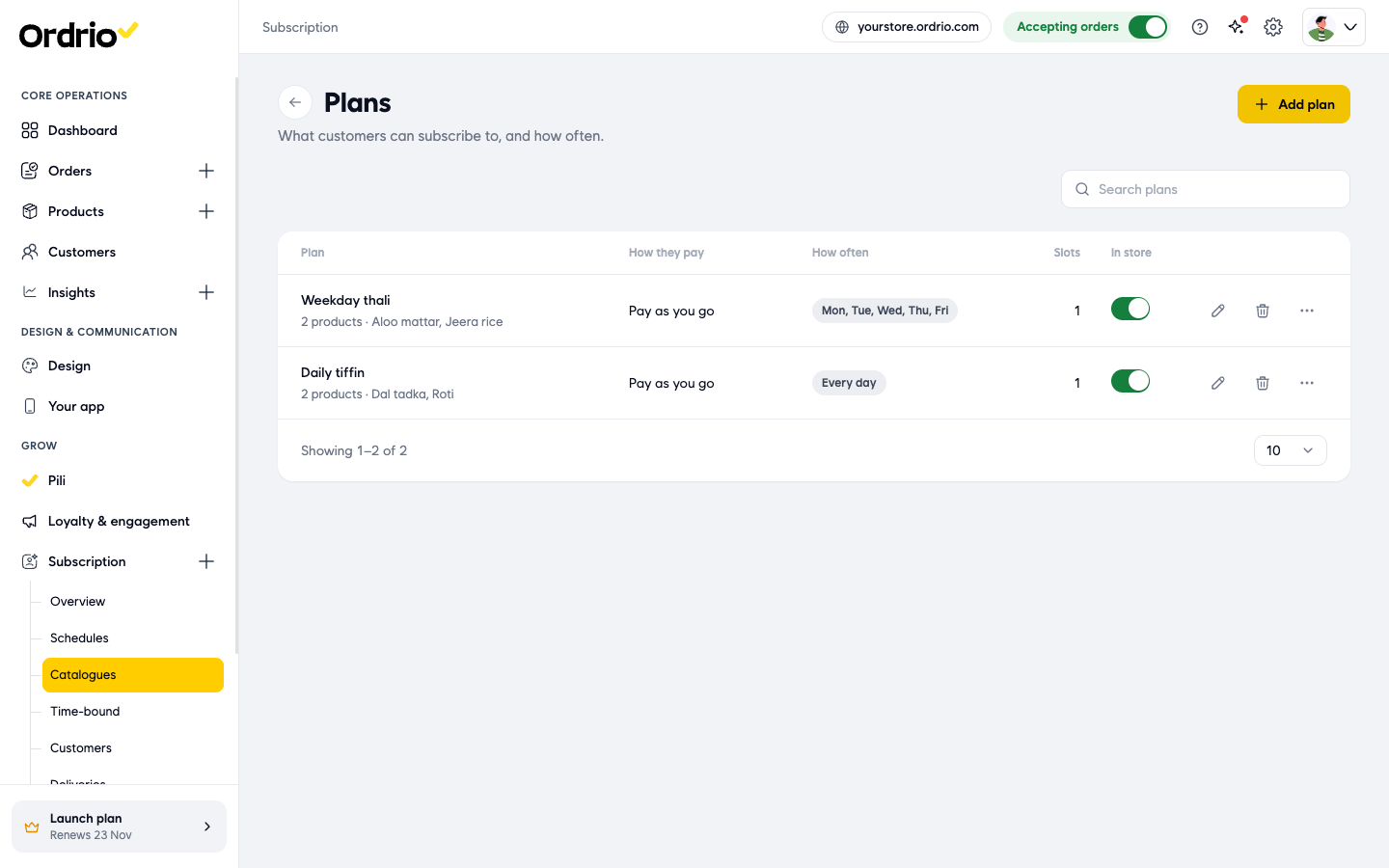
- Click Create plan at the top right. You go back to Plans, and your new plan is in the list with In store switched on.
The names, times, days and prices in these steps are examples. Use your own slot names, times, products and prices.
To change a plan, click the pencil icon on its row. To remove it, click the bin icon (or the ... menu, then Delete plan). Ordrio asks "Delete Weekday thali?" and warns that customers can no longer subscribe to it and that this cannot be undone. Click Keep plan if you change your mind.
What customers see
- A plan shows in your store when its In store switch is on. Turn the switch off to hide the plan without deleting it.
- While you create a plan, the What customers see box shows what customers get: the plan name, how they pay, how often and the products.
- Customers choose one of the How often options you ticked and one of the delivery slots you chose for the plan.
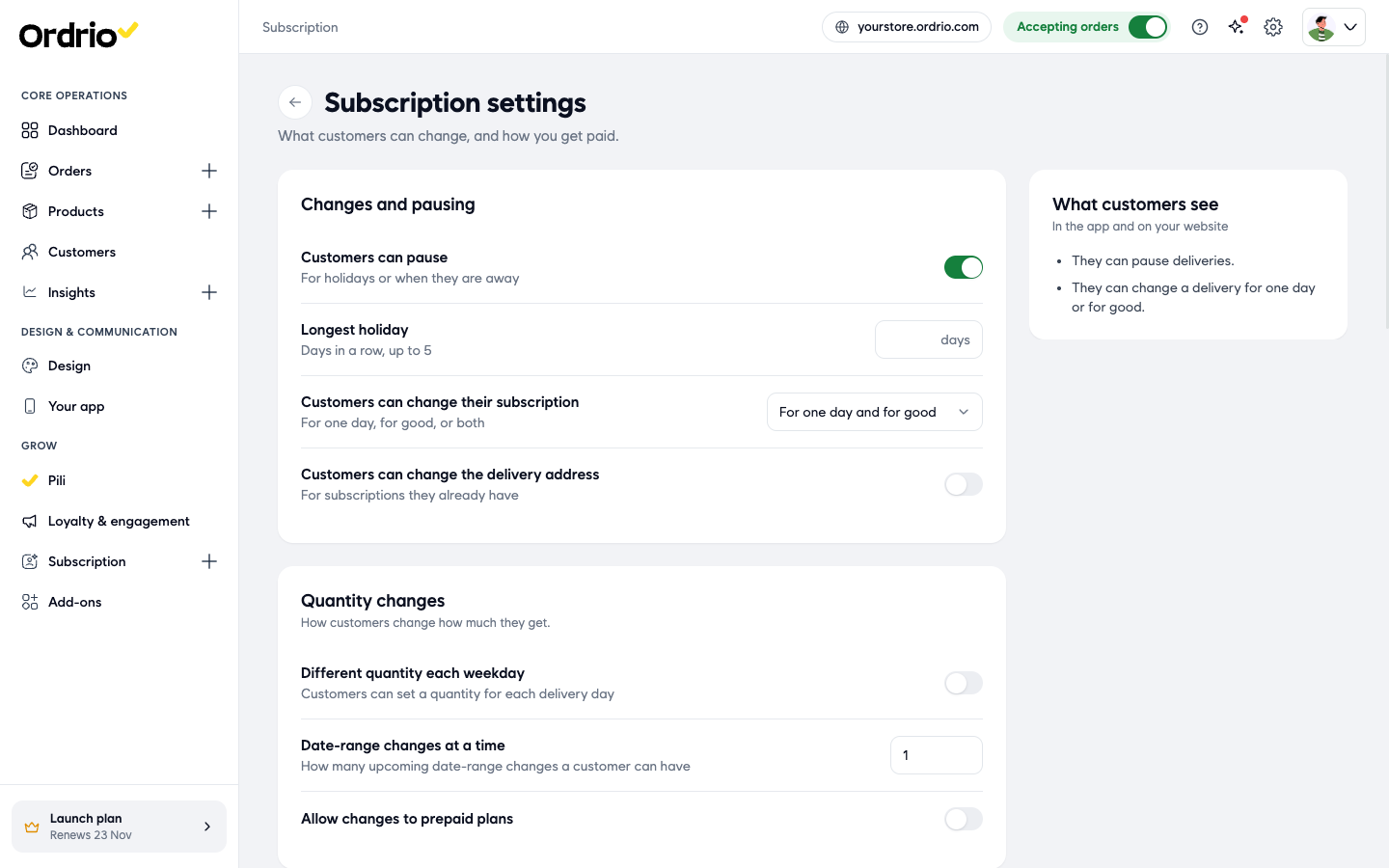
- What customers can change after they subscribe is set in Subscription > Settings. Its What customers see box sums it up "in the app and on your website", for example "They can pause deliveries." and "They can change a delivery for one day or for good."
Good to know
- A product can be in only one plan. If you add a product that is already in another plan, Ordrio shows a message like "Roti is already in the catalogue Daily tiffin." and does not create the plan. Remove that product or choose another one.
- Create your delivery slots first. A plan can only offer slots that already exist in Schedules.
- Give customers enough time between Changes close and the delivery time, so your kitchen or store knows the final orders before it starts.
- Deleting a slot or a plan cannot be undone.
Related
- What is Ordrio
- Recommended setup order for new stores