How-to guide
Contacting support
When and how to raise a support ticket.
If something in Ordrio is not working the way you expect, or you have a question about your store, raise a support ticket from your Ordrio admin panel. Your request, the team's replies and any screenshots stay together in one place, so you never have to repeat yourself in a chat.
When to raise a ticket
- Something in your admin panel, website or app is not working.
- Your store cannot take orders or payments.
- You have a question about orders, payments, delivery, products, your plan or your staff.
- You want to ask for a new feature.
- You have checked the Help Center and cannot find the answer.
Raise a support ticket
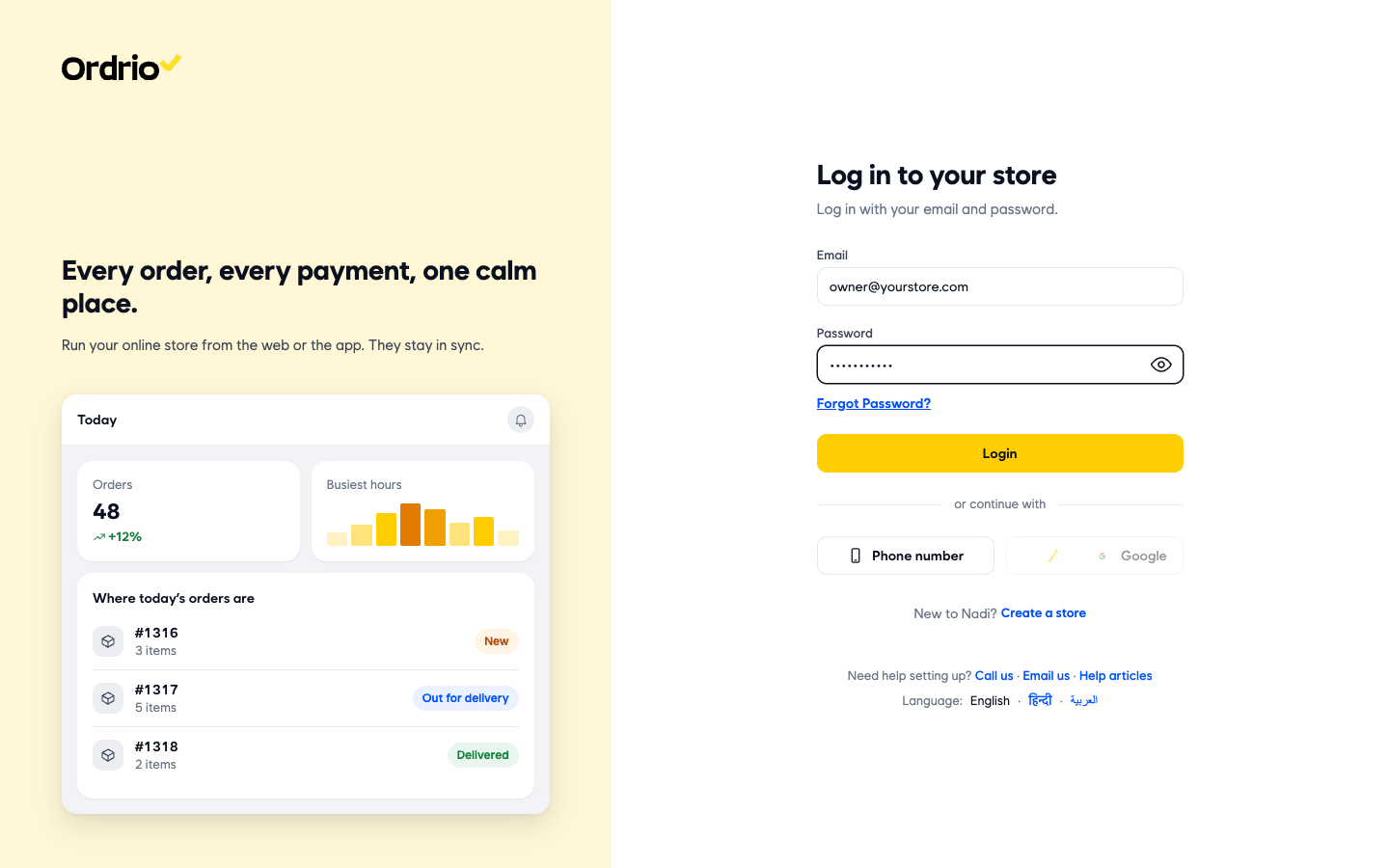
- Open nadi.ordrio.com (your Ordrio admin panel) and log in. Type your own registered email and password. The email in the picture is only an example.
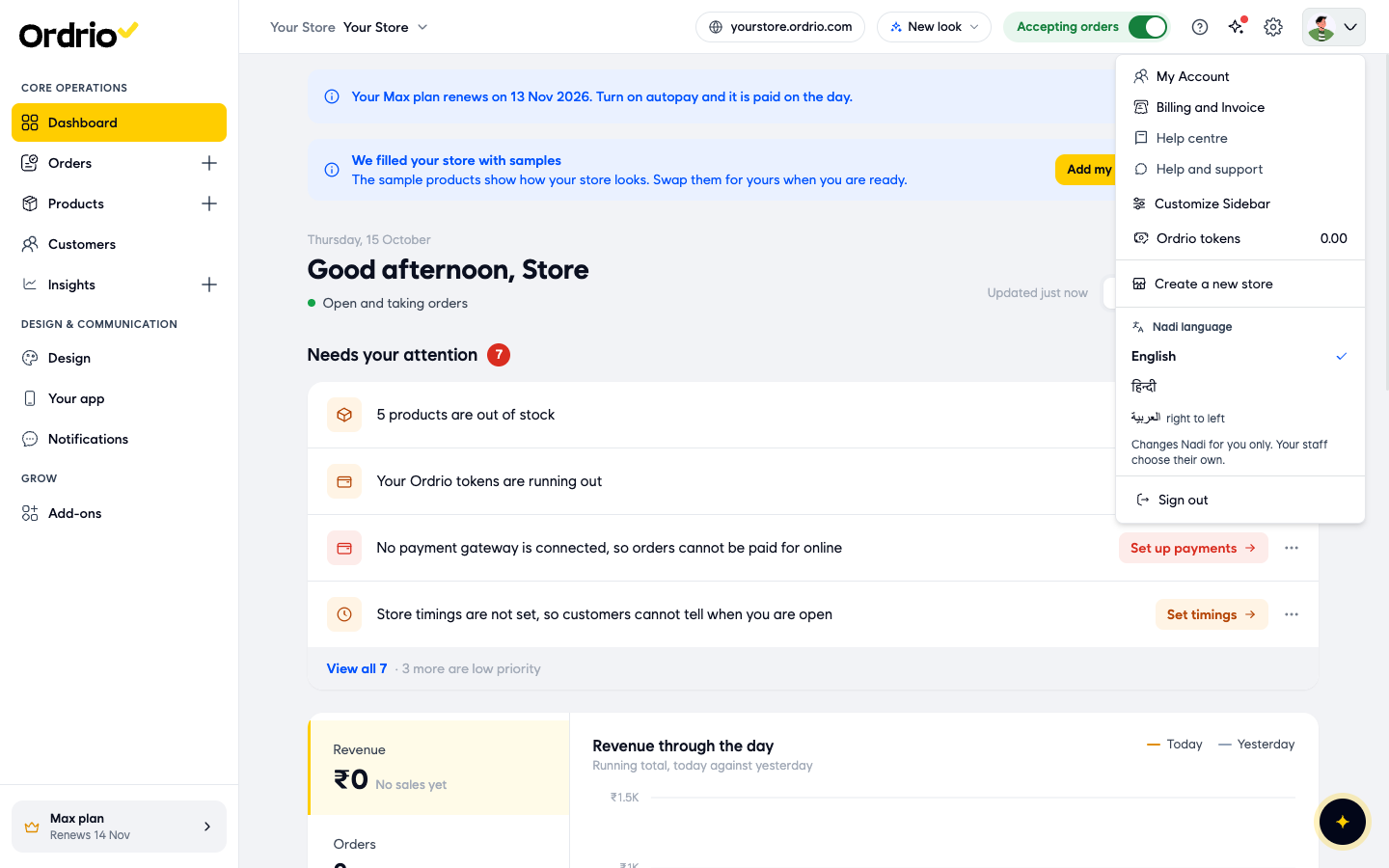
- Click your profile picture at the top right of the screen. In the menu that opens, click Help and support.
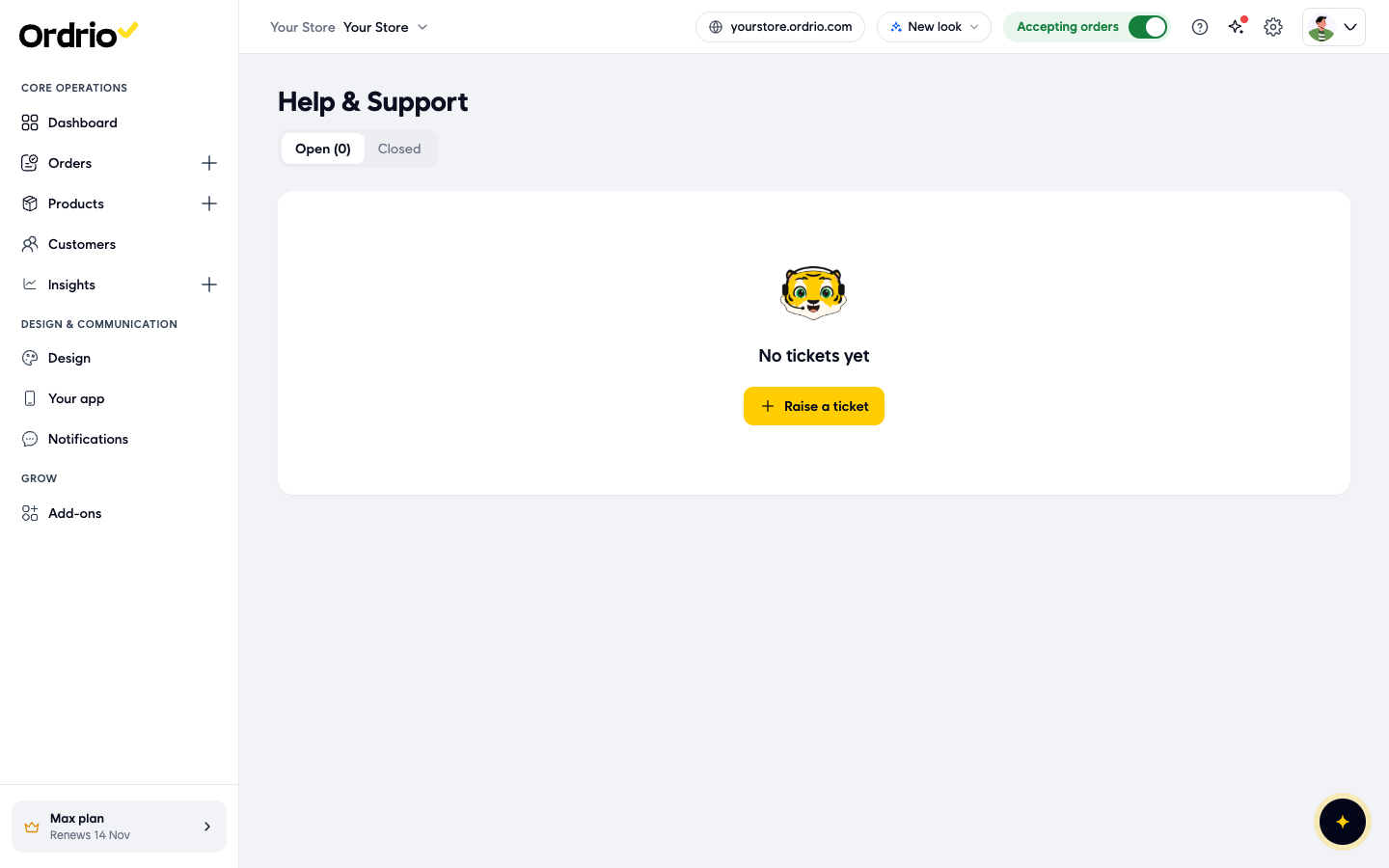
- The Help & Support page opens. It lists your tickets in two tabs, Open and Closed. Click Raise a ticket.
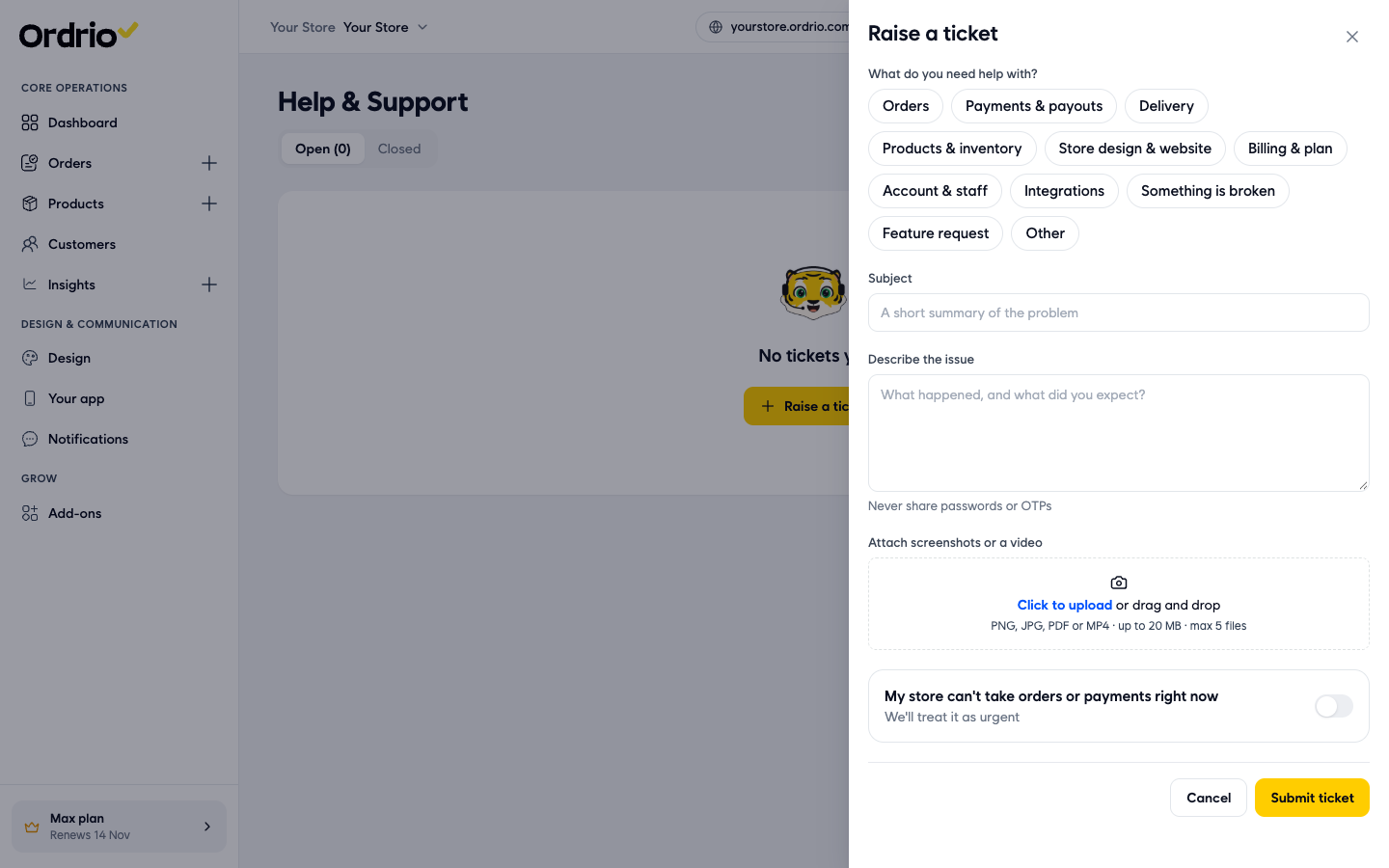
- The Raise a ticket form opens on the right. Under What do you need help with?, click the topic that fits your problem best. The choices are Orders, Payments & payouts, Delivery, Products & inventory, Store design & website, Billing & plan, Account & staff, Integrations, Something is broken, Feature request and Other.
- If a Sub-category box appears under the topic, choose the option that fits best. For example, Products & inventory offers Adding or editing products, Bulk upload, Stock and inventory, and Categories and variants.
- In Subject, type a short summary of the problem, for example "Product photo not showing on my website". Under These might help, Ordrio then suggests Help Center articles about your problem. Click one to read it. It may solve the problem without a ticket.
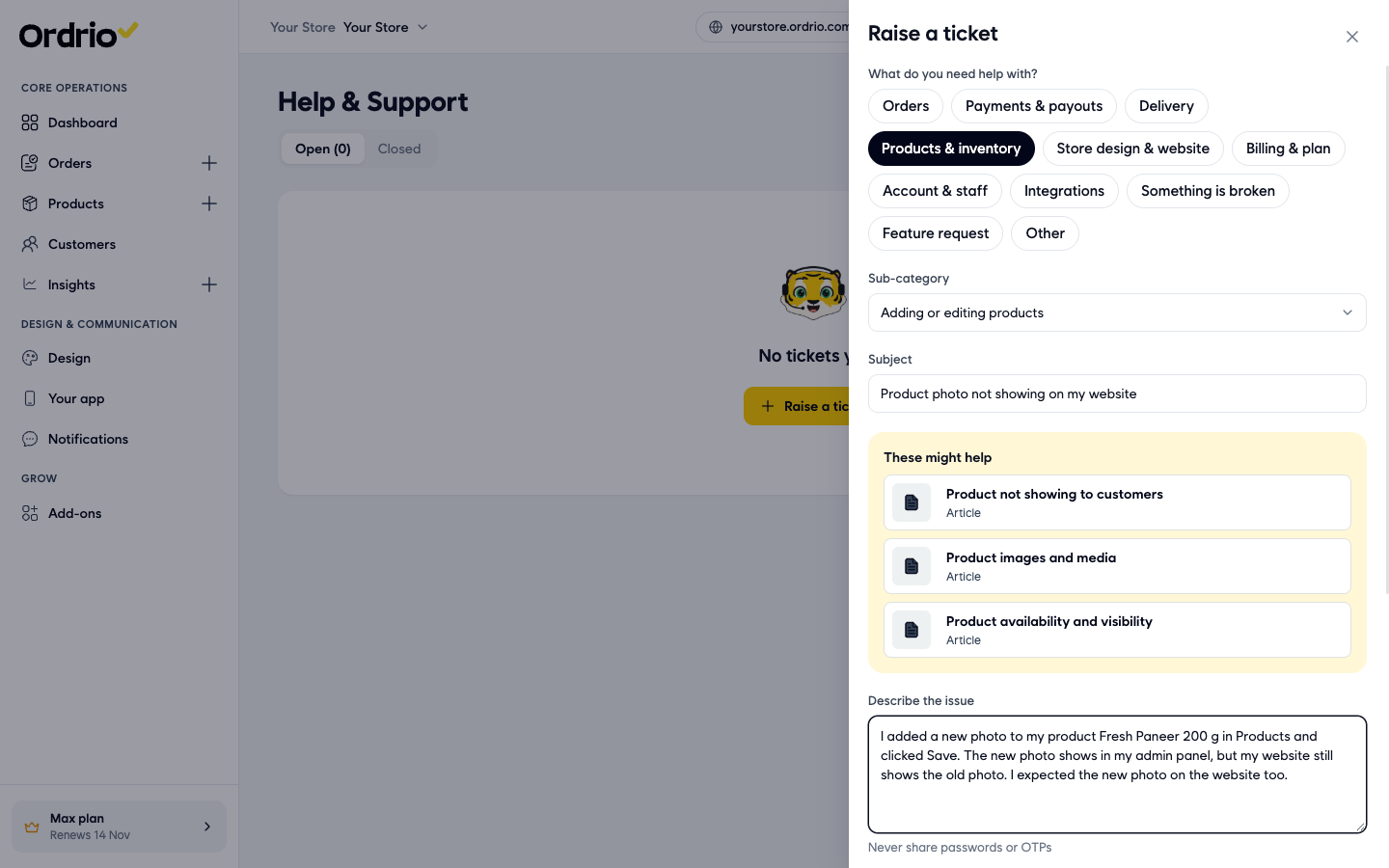
- In Describe the issue, write what you were doing, what happened and what you expected. Name the screen and the order or product if there is one. Never type a password or an OTP here.
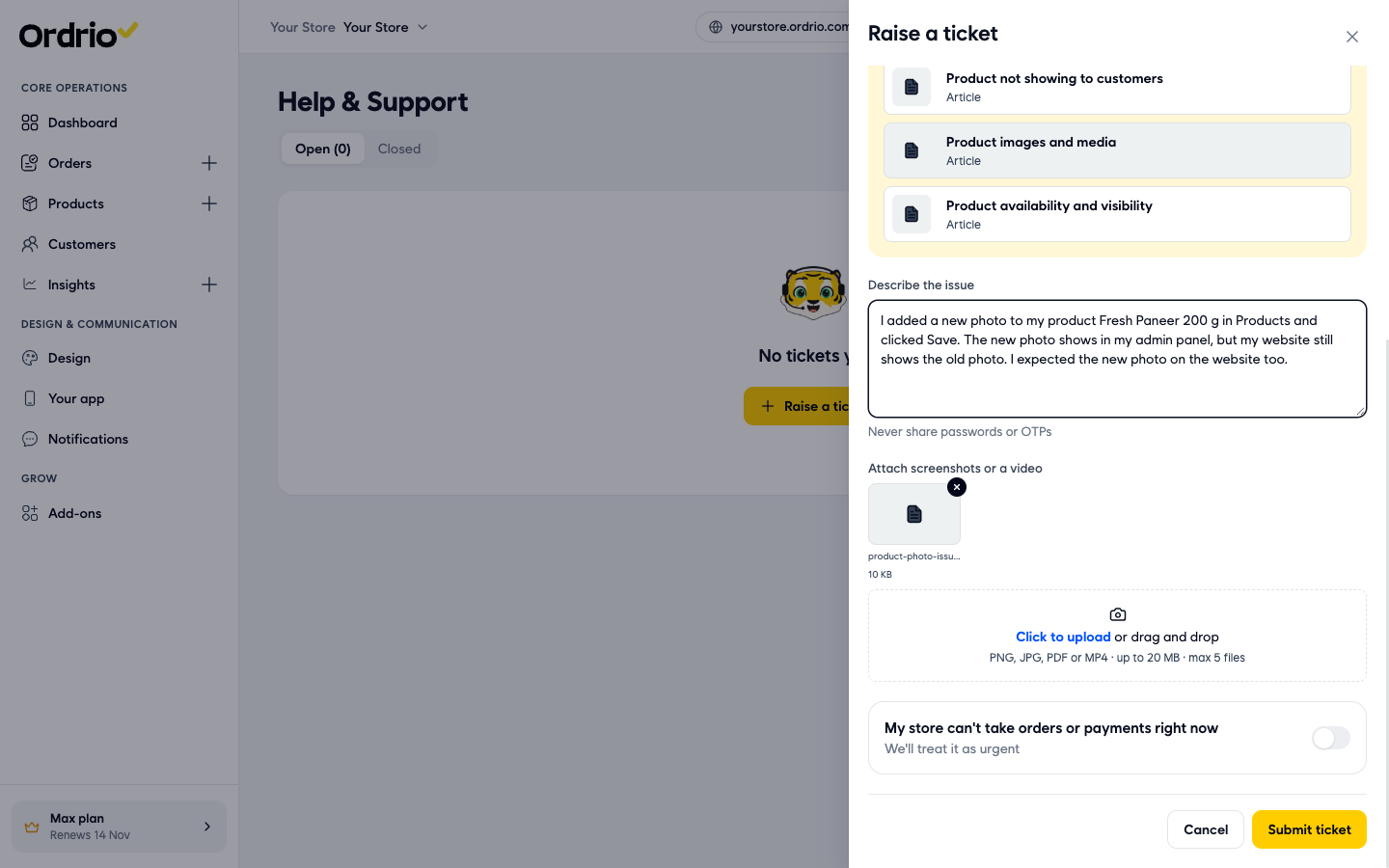
- Under Attach screenshots or a video, click Click to upload and choose a file, or drag the file into the box. You can add up to 5 files in PNG, JPG, PDF or MP4 format, each up to 20 MB. To remove a file, click the small cross on it.
- If your store cannot take orders or payments right now, turn on My store can't take orders or payments right now. The support team then treats your ticket as urgent. Leave it off for everything else.
- Click Submit ticket.
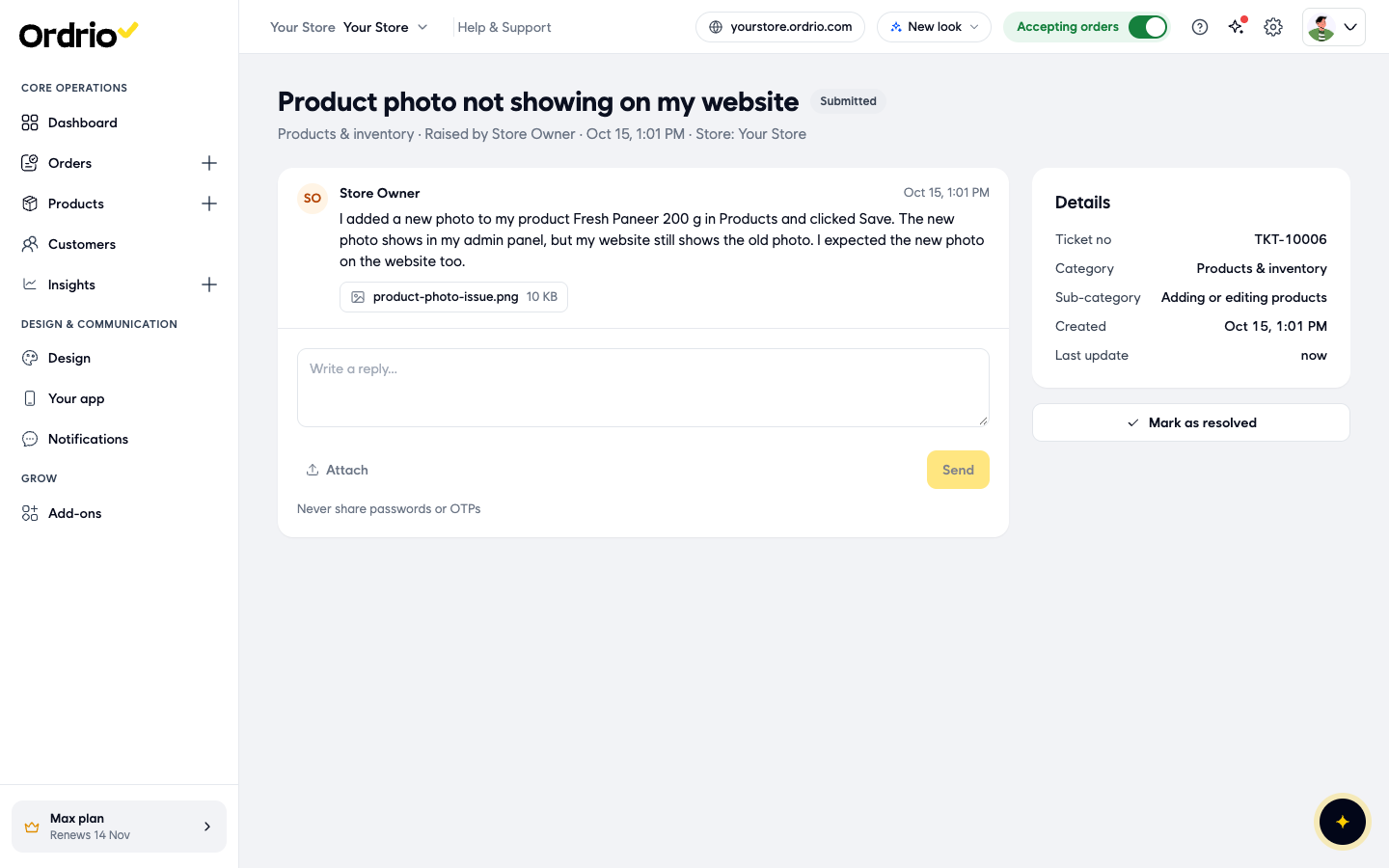
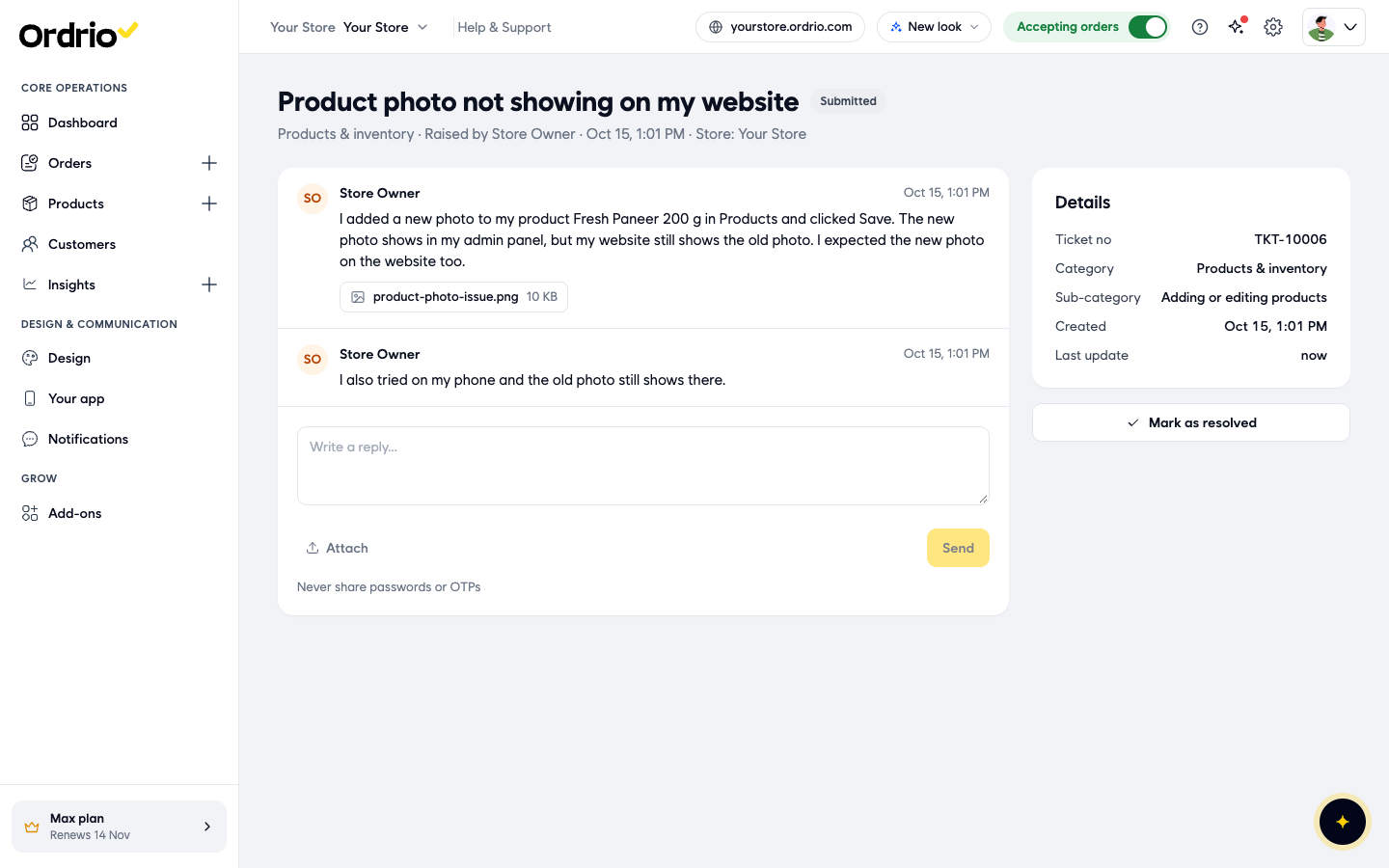
A message confirms your ticket number, for example "Ticket TKT-10006 raised. We usually reply within 4 working hours". The ticket page opens straight away. It shows your message and attachments, and a Details box with the Ticket no, Category, Sub-category, Created date and Last update. The status next to the subject is Submitted.
See your tickets and replies
- Click your profile picture at the top right, then click Help and support.
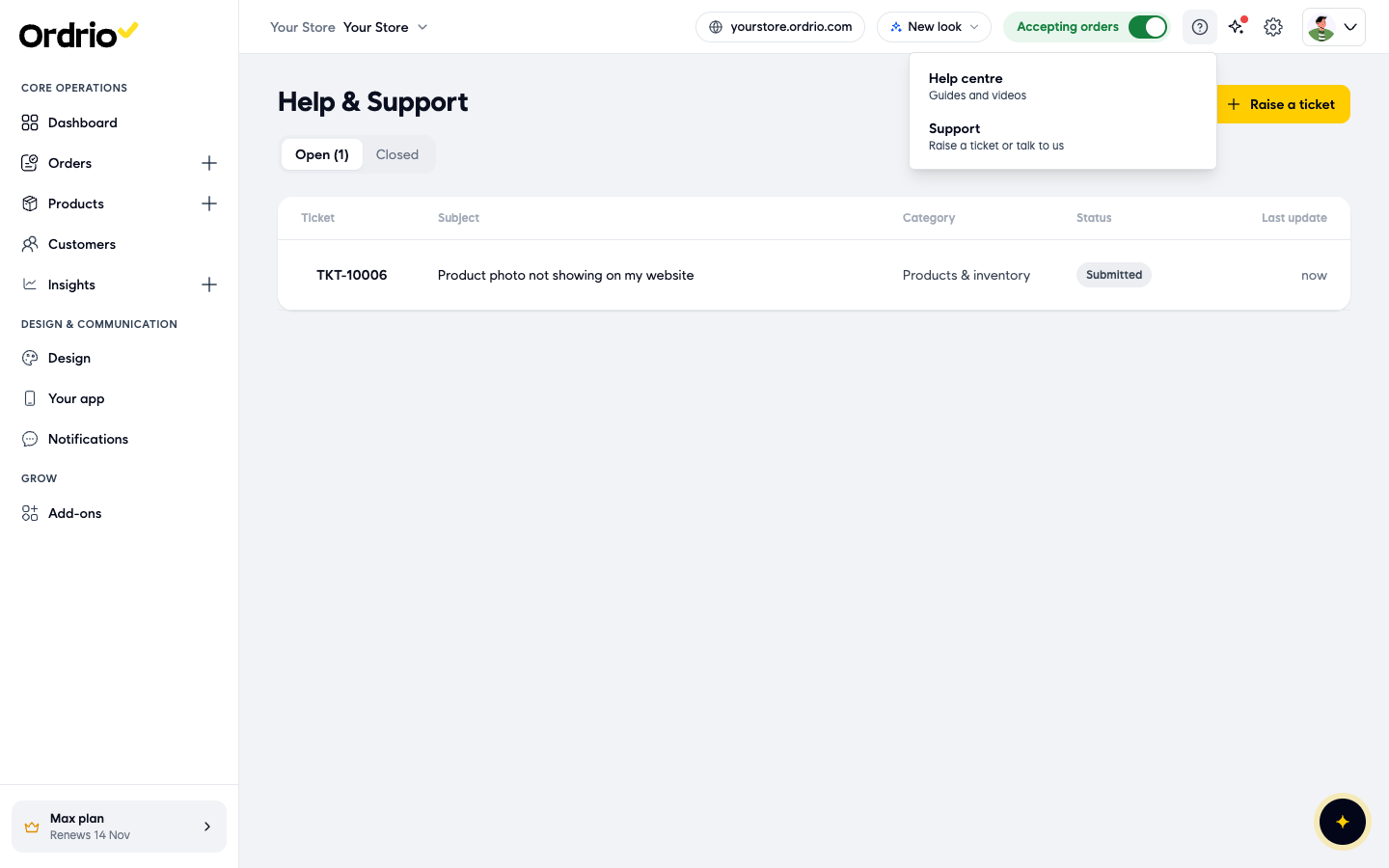
- On the Open tab, find your ticket. Each row shows the Ticket number, Subject, Category, Status and Last update.
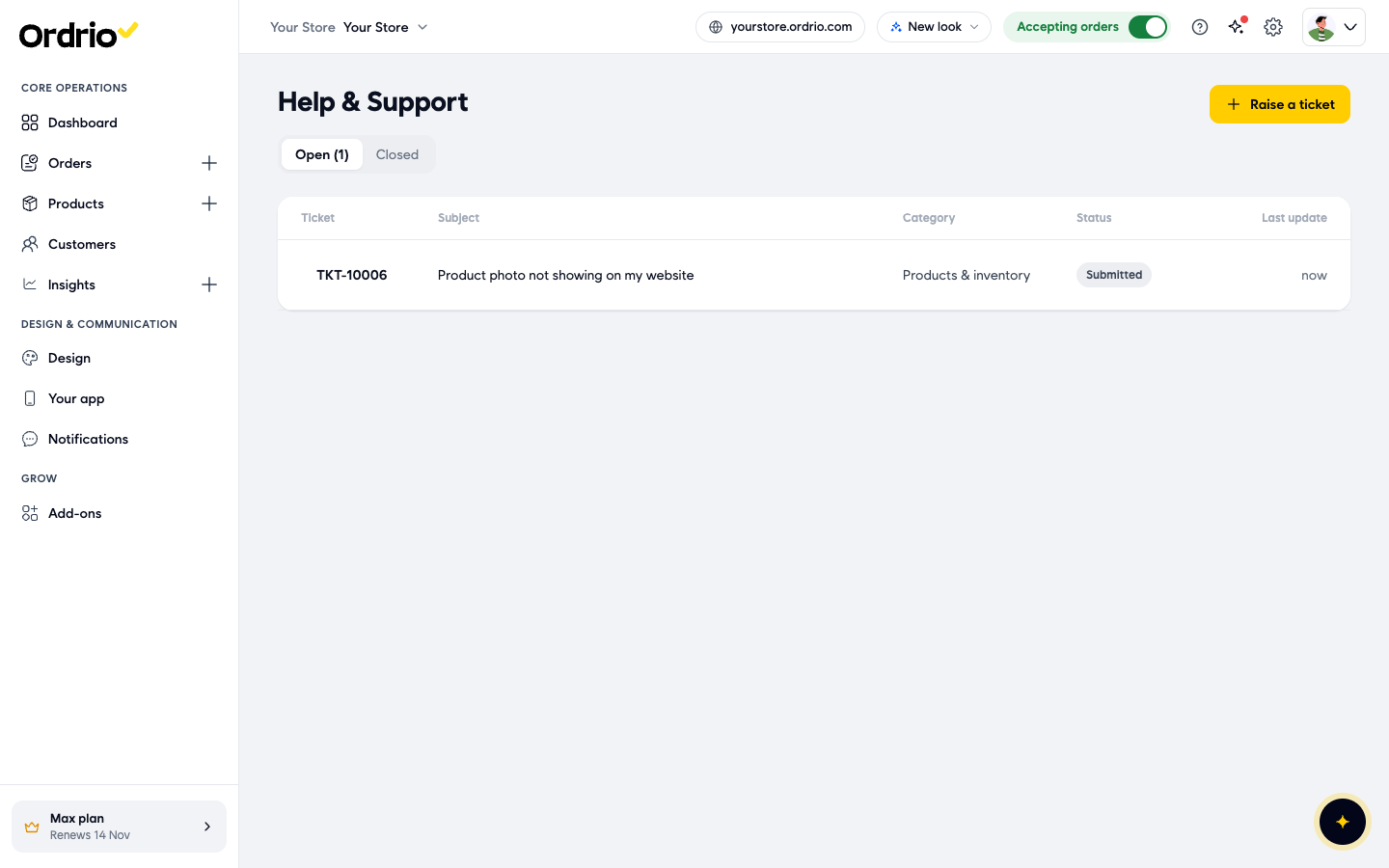
- Click the ticket to open it. Replies from the Ordrio support team appear in the conversation, under your first message.
- To add more details or answer a question, type in Write a reply…. To add a file, click Attach.
- Click Send. Your reply appears in the conversation.
Close a ticket and rate the help
- When your problem is solved, open the ticket and click Mark as resolved on the right, under Details.
- The status changes to Resolved and Ordrio asks "How was your support experience?". Click from 1 to 5 stars.
- If you like, click what went well (Quick reply, Solved my problem, Clear explanation or Friendly) and write a short review in Write a review (optional), up to 500 characters.
- Click Submit rating. The ticket shows "You rated this", and you can change it with Edit until the date shown next to it.
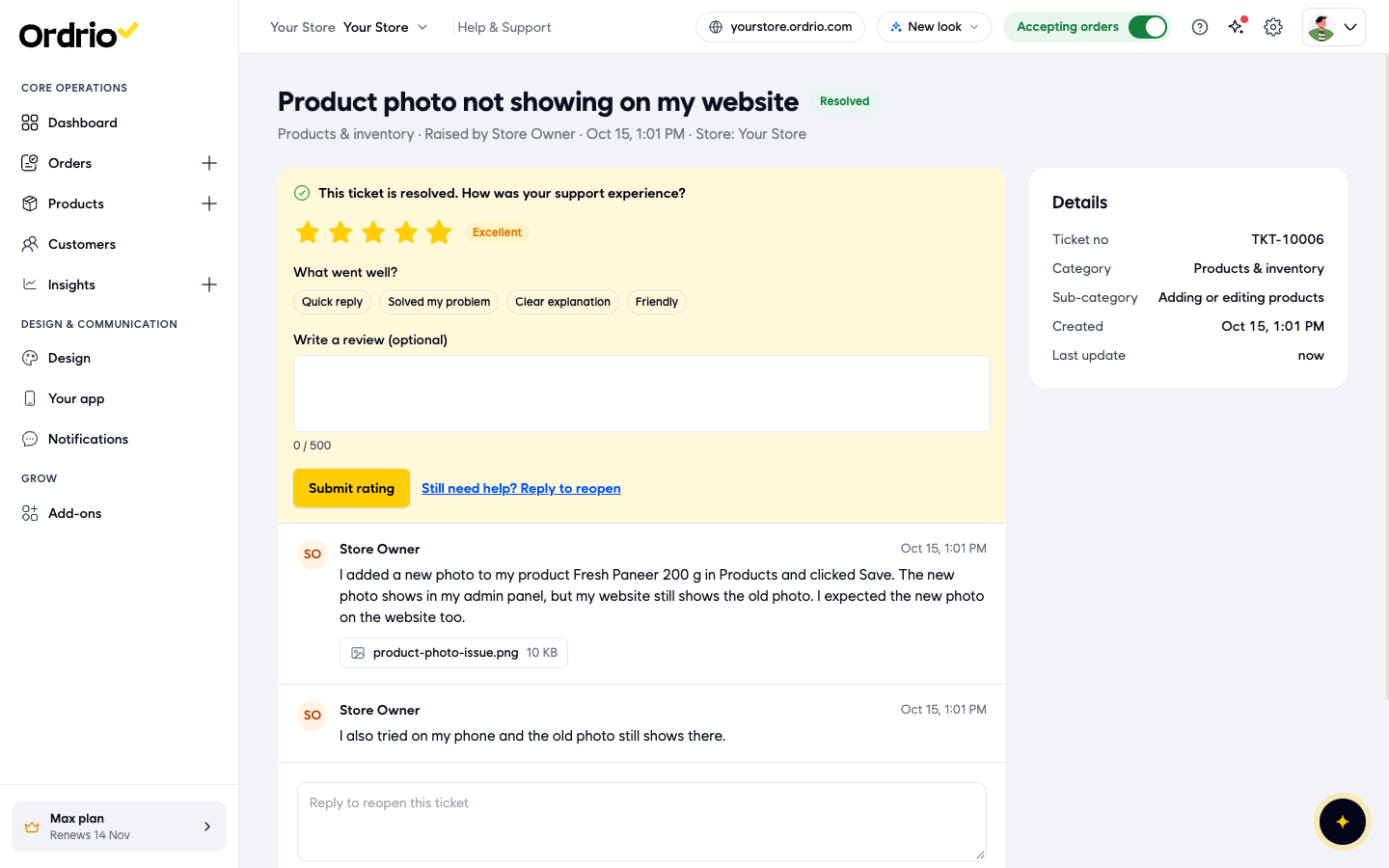
If the problem comes back, click Still need help? Reply to reopen, or type your message in Reply to reopen this ticket under the conversation and click Send.
Other ways to get help
- The ? button. At the top of every screen, next to Accepting orders, click the ? button. Help centre (Guides and videos) opens the Ordrio Help Center. Support (Raise a ticket or talk to us) opens the Help & Support page.
- Help centre in the account menu. Click your profile picture, then Help centre, to open the Ordrio Help Center.
- Before you log in. If you cannot log in, the login screen has help links under Need help setting up?: Call us calls the Ordrio support team, Email us opens an email to support@ordrio.com, and Help articles opens the Ordrio Help Center.
Good to know
- The support team usually replies within 4 working hours.
- Pick the closest topic and sub-category, so the team knows straight away what the ticket is about.
- A screenshot or a short screen recording helps the team see the problem.
- Never share passwords or OTPs in a ticket or a reply.
- Use one ticket per problem. If you have a new, different problem, raise a new ticket.
- A resolved ticket stays on the Open tab with the status Resolved.
- The example values in the pictures (subject, message and file) are only examples. Describe your own problem.
Related
- Viewing and managing orders
- Cancelling orders and refunds